Photoshop Tutorial Full Website layout
Hello my friends. In this tutorial you will learn how to create nice simple website layout.
This is what we are struggling forJ

NOTE: Always keep an eye on the final result, to know how and where to draw what I am suggesting.
Let’s start with the easiest parts.
Step No. 1:Setting up the canvas.
Create a new 1280x1024px Photoshop document. Select the gradient tool (G), and fill the layer with it. The colors I’ve used are shown in the picture.

TIP: If you want to create a perfect vertical gradient like mine, hold down the Shift key while dragging with the Gradient Tool over you canvas.
Step No. 2:Creating the logo/title/slogan.

This is a catchy logo/title/slogan, and it can be created using only one tool: the Text ToolJ.
So pick the text tool (T). Write down “:: OurBusiness.com” (this is what I wrote of course you can use the name of your company ).
The styles I’ve used :
* “::” – Shruti – Regular – 48pt – Strong - # ff9701;
* ”Our”&”.com” – Segoe Print – Bold – 30pt – Strong - #ffffff;
* ”Business” – Segoe Print – Bold – 30pt – Strong - #d37e04;
* “Lorem ipsum dolor sit amet, consectetu...” – Segoe Print – Bold – 14pt – Strong - #a8a8a8;
Step No.3: Creating the bottom part:

Create a new layer. Pick the Marquee Tool (M), make a selection as the rectangle above, and fill your selection with #870000.
Apply a 1px ouside Stroke, using #101010 and a “Drop Shadow” style, using the default settings.
Add the text.
I am using Shruti -> Regular -> 18pt -> Strong -> #FFFFFF.
Step No.4: Creating the main menu:

Pick the Rounded Rectangle Tool (U), select the radius to 10px, and set the foreground color to # 607785.

Draw a shape as shown:

Rasterize the layer. Make a small vertical selection as shown:

Hit delete. Now using the arrows on your keyboard, move the selection and hit delete where you need the second button to finish..and so on until you have all the buttons you need separated.

Now Ctrl + Click on the layer’s thumbnail shown in the Layer’s Palette Panel to select the layer’s area.

You canvas should look like this:

Set your foreground color to # ff9701. Grab the paint Bucket Tool (G), and click in the first area of your selection:

Now add the text. I am using Segoe Print :: Regular :: 24pt :: Strong.
The canvas should look like this:
Step No.4: Creating the orange submenu:

Using the Rounded Rectangle Tool and the foreground color set to # ff9701 and move it a bit over the main menu. Just as shown .
Apply a Drop Shadow Style, using the default settings.
Create a new layer. Grab the Rectangular Marquee Tool (M) and make a square selection as shown:

Fill it with #d78106.
Now, create an other layer, pick the Eliptical Marquee Tool , and draw an ellipse as shown, and fill it with # d78106:
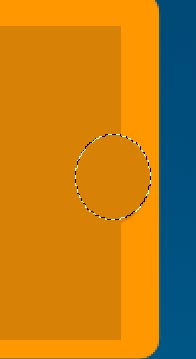
Now duplicate your layer, hit V on the keyboard (Move Tool), and using the left arrow on your keyboard, move the new created ellipse on the other side of our rectangle. As shown.

You should have something like this:

To create the two separators

Pick the Line Tool and set the weight to 1px. Make sure you have the “Shape Layer” Option on.
Drag two lines as shown in the picture. Hold down the Shift key to make them straight.

Rasterize both layers, and apply them a “Drop Shadow” style, with the default settings.
Add the writing. I have used Segoe UI and Segoe Print.

TIP:If you need the color, and it is not specified, open the picture in Photoshop, and pick up the color using The Pick Color Tool.

Now using this custom shape (U), and with the foreground color set to # 0a7d81, draw a shape as shown.


Duplicate the layer and move it on the left side. To perfectly change arrow’s pointing, press M (Marquee Tool), right click on your layer, in the canvas, and select Free Transform.

Now hit “-” in the width field.

You can get the wheels on the internet. Place them as shown and change the layer’s mode to “Darker Color”.

Step No.4: Creating the presentation - the black rectangle:

Grab the Rounded Rectangle Tool, set the foreground color to #000000, the radius to 10px.
Draw the black rectangle:

The same image with wheels used at the previous step, must be copied and placed as shown:

Add the writing.

Styles used:
TITLE: Segoe Print -> Regular -> 18pt -> Strong -> # d78106;
CONTENT: Segoe Print -> Regular -> 24pt -> Strong -> # d78106;
FOOTER: Segoe UI -> Regular -> 18pt -> Strong -> # 9b9a99;
Copy a picture from the Internet and copy it as shown in the picture:

With the Line Tool, add a shape as shown, to underline the title:

Step No.4: Creating the right blue menu:

With the Rectangle Tool and the foreground color set to # 0072a6, create a shape as shown:

Rasterize the layer, and apply a Drop Shadow style, using the default settings.
Repeat the previous step to create a # 045e87 rectangle. Place it as shown.

Rasterize the layer and apply a 1px outside Stroke using # 01405c.
Now we need to create that nice upper little nice glossy rectangle.

So grab the Rounded Rectangle.
Draw the rectangle as in the picture above. Rasterize the shape. Right click and open the Blending Options… Panel. Apply these settings:

And a 1px outside Stroke using # 000000.
Now let’s create the “More” buttons.

Add the square using the Rectangle Tool and a random color, as we are going to apply a gradient style.
So you have drawn the square. Right click and hit Rasterize Layer.
Open the blending mode panel and apply the following styles:
*Drop Shadow using the default settings.
*Gradient using the following settings:

Now add the text and we are done : ).

Text Styles:
* “Quote of the day “: Segoe UI -> Bold -> 18pt -> Strong -> # 3d515d
* “Lorem ipsum….” : Segoe Print -> Bold -> 12pt -> Strong -> # ffffff;
*”Latest Reviews” : Shruti -> Regular -> 24pt -> Strong -> # 8a0707;
*”Donec…”: Shruti -> Regular -> 14pt -> Strong -> #bfb9b9;
*”:”: Shruti -> Regular -> 24pt -> Strong -> # 00415e;
*”More”: Shruti -> Regular -> 18pt -> Strong -> # 7e0606;
Ta-daaaa..You’re done : ). Please don’t forget to share it.
The result:

Thanks for visiting my blog..
Cheers.


Fresh Awesome Header Photoshop Tutorial
The final result:

Hello fellows. Today I am going to teach how to create a colorful nice website layout.
Notes:
§ The layers are being filled with the Paint Bucket Tool (G).
§ When using the Rectangle Tool and Rounded Rectangle Tool while following this tut, make sure you have the “Shape Layers” Option on.
There we go!
Create a new 1024x768 px new Photoshop document.
Fill it with gradient.

Create a new layer. Using the Marquee Tool (M), create a rectangle and fill it with gradient. Place it as shown.


Create a new layer. Using the Marquee Tool (M), create a rectangle and fill it with #056999. Apply a Drop Shadow Filter, using default settings. You should have something like this:

Duplicate the layer, and fill it with # e6e6e6. Place it as shown:

Let’s create the logo:
Select the rectangle tool, and the foreground color to #ffa500.
Right click on the new created layer, and select rasterize.
Set layer’s opacity to 60%.
Duplicate the layer twice, and move the 3 layers as shown. (Rotate them by selecting Marquee Tool (M) -> Right Click -> Free Transform).

Add the writing :

Specifications :
§ Great : Segoe Print :: Bold :: 30pt :: Strong :: #2dc7f4;
§ Tutorials : Segoe UI :: Regular :: 30pt :: Strong :: # d78106;
§ All you need at a click : Segoe Print :: Bold :: 18pt :: Strong :: # d9dddf;
The Search Box
Grab the Rounded Rectangle Shape Tool (U). Select the radius to 20 px, set the foreground color to # 981515, and draw something like this:

Right click on the new created layer and click Rasterize Layer.
Now grab the Rectangle Tool Shape (U). Set the foreground color to # d5d5d5 . Draw a shape inside your previous created shape.

Open the blending mod Panel. Apply the following styles to this last layer:
§ Inner Shadow with default settings;
§ 1px outside Stroke, using # 870000;
Add the checkboxes. Draw a little white square, and add a 1px outside Stroke style. Duplicate it several times, and place them as shown, using the Move Tool (V):

Add some text:
I’ve used 18 px Bold Arial, and 14px for the word “Search”.

For “Search a tutorial here..” I’ve used Segoe UI, Regular, 12pt, Strong, # 565656.
Now add the main menu:

Font Used: Segoe Print, Bold, 18pt, Strong, # ffffff.
Create a new layer. Grab the Marquee Tool (M), set the foreground color to # d78106, and draw a little rectangle above the menu, as shown.

Lets start drawing the header. I will first show the picture so you know what needs to be done, and after I will describe how is done.

Create a new layer. Grab the Marquee Tool (M), and create a rectangle, and the one above.
Fill it with any color you want, so the layer become editable. Now with it still selected, select 2/3 of its width (for the purple area) and fill it with # 2d035c. Now select the remaining area and fill it with # d78106.
Beginner Tip : When selecting the part of the layer, it is OK to go outside the layer’s border with the selection, as long as when having the Paint Bucket Tool selected (G), you will click inside the layer.

Apply a 1px # 989898 outside Stroke style to your layer.
Open some pictures with other Photoshop Layouts, rotate them and place them as shown.
Tip: To delete the non needed areas, click on your previous selected layer while holding Ctrl. This will select the layer area. Ctrl+Shift+I (Invert Selection), and with the Photoshop layout layer selected, hit Delete. Do it for every layout if you use more than one.

The Login Box:

Create new layer. Use the marquee tool (M) to create a rectangle as shown, and fill it with gradient using the colors I’ve written on the picture.
Apply a 1px outside Stroke using # 801111.
Now select a little portion of your rectangle and hit delete.

This is how the upper side is going to look like:

The Text settings I’ve used:
§ Not yet a member: Segoe UI, Regular, 14pt, Strong, #FFFFFF;
§ Sign Up : Segoe UI, Bold, 14pt, Regular, #FFFFFF;
In order to create the button you have to:
§ Create the rectangle (U) using a random color as foreground color.
§ Rasterize the layer.
§ Apply to your new created layer the following settings:


Create a new layer. Create a new shape as the following one using the Pen Tool (P),Right-Click-> Make Selection and fill it with #318ab4

Place it of course as shown in the picture above.
Select this layer and the previous one and press Ctrl G to create a Group.
This is the bottom side :

In order to achieve this, duplicate the group created at the previous step, to use it as a Submit button.
The Username and Password fields:
Create a rectangle using Rectangle Tool Shape, and the foreground color set to #d5d5d5. Rasterize layer.
Apply the following settings:
§ Inner Shadow with default settings;
§ 1px Outside #870000 Stroke.
Duplicate it to create the both fields. Place them one above the other as shown. Write down the text.
Now draw this little triangle using #870000 as foreground color:

You can use the Pen Tool to create it.
Add some text in the right column. The colors used are written in the picture:

The titles are white, and the lines are #c3c3c3, drawn with a 1px width Line Tool (U).
My result :
I know it is kinda sketchy, so for any questions you have, don't hesitate to post a comment.Don’t forget to share itJ Thanks!
Subscribe to:
Posts (Atom)